.png)
Your iPad Is Getting Smarter: Apple Intelligence for Classrooms
- May 23, 2025
- 7 min read
Updated: Jul 12, 2025

Apple Intelligence is now firmly integrated into the latest iPadOS, and has the power to transform how teachers teach and how students learn. From content creation to communication, these tools reduce friction, boost productivity, and help every learner engage more deeply. Here's how:
Writing Tools
The Writing Tools feature turns your iPad into a smart assistant for writing, editing, and content generation. You can polish a paragraph, rework a sentence, or start from scratch, helping you elevate the quality of writing in most places you can type on your iPad.

How To Use It:
While writing, highlight the text you want to improve, then tap the > button and select Writing Tools. You'll see options to:
Proofread: Identify and correct grammar and spelling mistakes (underlined with a glowing highlight).
Rewrite: Instantly generate alternative versions of your text.
Summarise: Condense longer passages into concise summaries, with the option to organise the information into a table.
Compose: Generate content from scratch (recommended for teachers only due to age restrictions and privacy concerns). To enable the ChatGPT integration:
Settings → Apple Intelligence & Siri → ChatGPT → Set Up.
(Note: ChatGPT is restricted to users aged 13+)
What It Can Be Used For:
For Students:
Explore different ways to phrase a sentence or paragraph using the Rewrite function.
Summarise research notes or long texts into key points
Use summarisation to support understanding for EAL learners or those with other learning needs.
For Teachers:
Quickly draft, rewrite, or personalise lesson materials
Summarise curriculum documents, research articles, or meeting notes into digestible insights.
Generate sample texts or writing prompts tailored to different groups.
Create model answers, report comments, or professional emails faster.
Image Playground
Image Playground is Apple Intelligence’s built-in image generation tool that lets you create AI-powered visuals. You can combine concepts, text descriptions, and people from your photo library to generate unique images. It’s available as a standalone app and is also integrated directly into Freeform and Keynote.

How To Use It:
Open the Image Playground app directly from your iPad or access it within Freeform and Keynote to generate visuals inside your workspace.
Enter a text prompt (e.g., "a futuristic classroom on Mars") to generate images.
You can mix in character descriptions or even blend elements from your photo library, but teachers must monitor this closely due to privacy and safeguarding risks.
In Keynote, you can enhance generated visuals further by inserting additional shapes and annotations.
What It Can Be Used For:
For Students:
Generate character visuals to accompany narratives or design settings for storytelling.
Create visuals for science reports, history presentations, or digital portfolios.
Use it as a springboard for idea generation or to iterate on visual concepts.
For Teachers:
Quickly create custom visuals to illustrate abstract concepts or spark discussion.
Design bespoke images for slides without relying on generic stock photos.
Use it to create thematic, visually engaging templates or mind maps in Freeform or Keynote
Genmoji
Genmoji is a creative emoji-generation tool that lets users design entirely new emojis based on text descriptions. It’s a playful yet surprisingly powerful way to visually communicate unique ideas, emotions, or concepts.

How To Use It:
When typing on the iPad, tap the Genmoji icon at the top-right corner of the keyboard. In the “Describe a Genmoji” field, type a short description, like “Rainbow cactus” or “Robot with a pencil”, and Apple Intelligence will create a custom emoji that matches your prompt.
What It Can Be Used For:
For Students:
Create personalised icons to represent characters in stories, classroom jobs, or project team roles.
Design emotion emojis for social-emotional learning activities.
Visually summarise a piece of learning or create a gallery of “learning moments” using Genmoji.
For Teachers:
Use as visual feedback on student work - more fun and memorable than standard stickers.
Build classroom culture with student-designed Genmoji mascots or reward tokens.
Incorporate custom icons into digital rubrics, choice boards, or group work tools to improve engagement and clarity.
Notes
The Notes app on iPad now integrates Apple Intelligence to supercharge how you capture, organise, and visualise information. With tools like Transcripts, Smart Script, Maths Notes, and Image Wand, handwritten and typed content becomes more dynamic, legible, and AI-enhanced.

How To Use These Features:
Transcripts: When recording audio in Notes, Apple Intelligence automatically transcribes the spoken content into text. Perfect for capturing lessons, student reflections, or meetings.
Smart Script: This feature automatically improves the appearance of your handwriting, smoothing out letters and aligning text without losing the personal handwritten style.
Maths Notes: Recognises, solves and formats handwritten math equations, making them easier to read and work with. Ideal for working out problems or creating clean mathematical content.
Image Wand:
From a Sketch: Tap the Handwriting Tools button, draw a rough sketch with your finger or Apple Pencil, then tap Image Wand. Circle the sketch, add a description, then tap Send to generate a refined image.
From Content Context: Tap the Handwriting Tools button, then Image Wand. Circle an area of text or content you'd like to visualise. Apple Intelligence generates a relevant image to enhance your note.
What They Can Be Used For:
Students:
Record and transcribe group discussions or teacher explanations to revisit key points.
Use Smart Script for neat and readable handwritten revision notes.
Solve math problems and have them automatically formatted for clarity.
Sketch concepts or diagrams roughly and instantly transform them into polished visuals for projects or study.
Teachers:
Transcribe planning meetings or classroom audio to streamline documentation.
Use Maths Notes to model equations in a clear, accessible format during lessons.
Convert brainstorming sketches into visuals for presentations or learning materials.
Siri
Siri has evolved from a basic voice assistant into a context-aware, AI-powered tool that understands natural language more deeply, follows up on questions, and performs smarter actions. It now offers more relevant, multi-step help that connects across apps and content on your iPad.

How To Use It:
Just say “Hey Siri” or press and hold the top button on your iPad. Ensure Apple Intelligence features are enabled in Settings → Siri & Search → Apple Intelligence.
What It Can Be Used For:
For Students:
Ask for definitions, summaries, or explanations while working on assignments.
Set up reminders for homework deadlines or group projects using voice commands.
Quickly search Photos for visual content (e.g., “Show me our science fair pictures”).
For Teachers:
Ask Siri to draft emails, generate lesson reminders, or start composing teaching notes.
Retrieve specific photos, documents, or files across the iPad using descriptive voice prompts (e.g., “Find the photo of the class experiment with vinegar and baking soda”).
Use Siri as a hands-free assistant while teaching - setting timers, launching apps, or playing media without interrupting the flow.
Photos
The Photos app on iPad now includes powerful Apple Intelligence features that make it faster and smarter to create, search, and edit visual content. Whether you're looking for a specific image, telling a story with video, or cleaning up a photo for a presentation, these tools work directly within your photo library using natural language and on-device AI.

How To Use These Features:
Create a Memory Movie:
Open the Photos app → Scroll down to Memories → Tap Create → Type a short description (e.g., “Science Fair highlights”) → Tap Done. Apple Intelligence scans your library and auto-generates a polished movie based on your prompt.
Smart Photo and Video Search:
Tap the Search bar → Enter a natural language description (e.g., “Maya skateboarding in a tie-dye shirt”). Apple Intelligence quickly locates matching content, even from within video clips.
Clean Up Tool:
Select a photo → Tap Edit → Use the Clean Up tool to remove distracting background objects with a tap or swipe.
What They Can Be Used For:
For Students:
Create end-of-term reflection videos or project summaries by generating Memory Movies from class trip or activity photos.
Find specific moments in videos for editing or presentation.
Clean up photos for e-portfolios, reducing background clutter to focus on key elements.
For Teachers:
Quickly build engaging highlight reels of learning experiences to share with parents, school leadership, or on classroom displays.
Search for photos of student work or classroom events using natural language - no more scrolling endlessly.
Prepare clean, distraction-free images for lesson slides or newsletters.
Notifications
Apple Intelligence now helps your iPad intelligently manage notifications so you're not constantly distracted by every ping. Your iPad can automatically identify which notifications are important and highlight them at the top of your stack. At the same time, the Reduce Interruptions Focus filters out less critical alerts so you can stay in the zone.

How To Use It:
Open Settings → Tap Focus → Choose Reduce Interruptions.
This mode leverages Apple Intelligence to assess the content of incoming notifications and suppress anything that isn’t urgent.
What It Can Be Used For:
For Students:
Maintain focus during class by filtering out social media and game alerts.
Get priority reminders about assignment deadlines or timetable changes.
Reduce screen time distractions to build better self-regulation habits.
For Teachers:
Stay focused during instruction or meetings - only get alerted by important apps or urgent school comms.
Set it during assessment or planning blocks to avoid being derailed by non-essential updates.
Use with Do Not Disturb and app filters to create distraction-free teaching environments.
Safari
Apple Intelligence brings AI-powered summarisation directly into Safari, helping users cut through the noise of lengthy webpages and extract key ideas instantly. This built-in feature allows you to generate concise summaries of web content with a single tap.
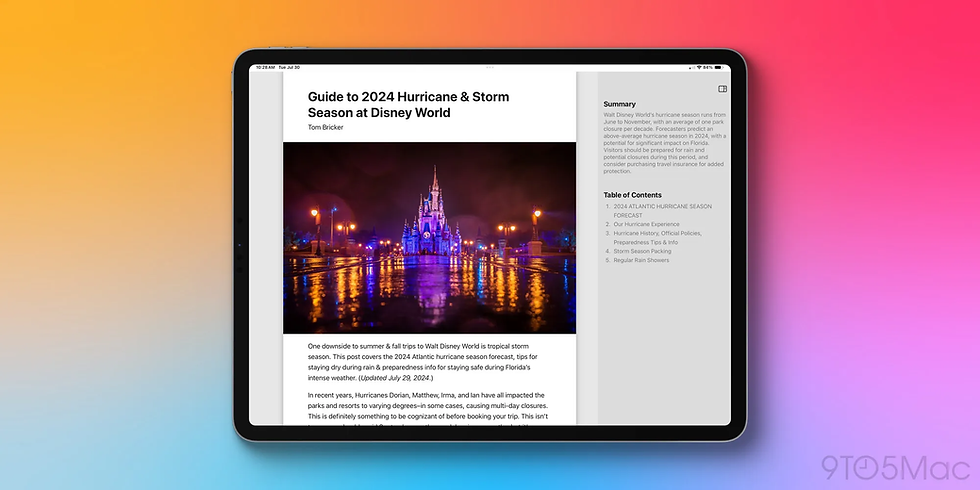
How To Use It:
Open the Safari app on your iPad.
Navigate to the article or webpage you want to summarise.
Tap the Page Settings icon (aA in the address bar).
Select Show Reader to simplify the page view.
Tap Summarise at the top of the page to generate an instant overview.
What It Can Be Used For:
For Students:
Scan multiple sources quickly to determine relevance before deep reading.
Use summaries to reinforce key points or review content before tests.
Help EAL or struggling readers access simplified overviews of complex texts.
For Teachers:
Vet resources for lessons in seconds by skimming summaries.
Provide summaries alongside full articles to support mixed-ability classrooms.
Save time when reviewing educational blogs, news, or academic content for planning.
From smarter writing and faster research to creative visuals and organised workflows, these tools help reduce friction, save time, and enhance output for both students and teachers.
But like any powerful tool, their impact depends on how intentionally they’re used. If you're serious about transforming your classroom, start experimenting, set clear boundaries for student use, and build these capabilities into your everyday practice.


Comments